How to properly take notes following a specific structure and organization
Zoom in
Assessment Data Storage Sample Structure
Pentest Assessment
How to properly organize all data generated during an assessment
Zoom in
Sections
Admin
Scope of Work (SoW) that you’re working off of, your notes from the project kickoff meeting, status reports, vulnerability notifications and so on
Deliverables
Folder for keeping your deliverables as you work through them. This will often be your report but can include other items such as supplemental spreadsheets and slide decks, depending on the specific client requirements
Evidence
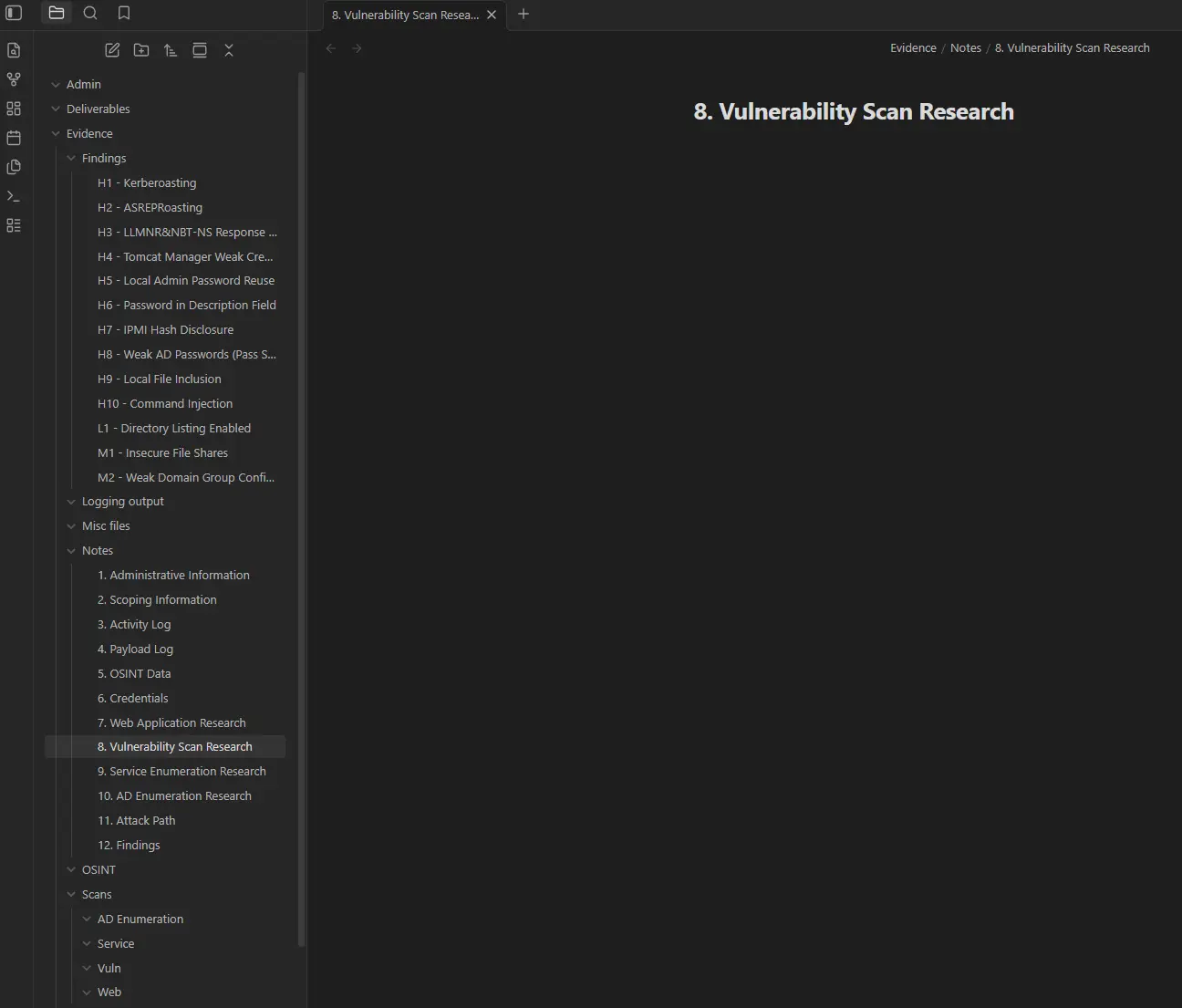
Findings
We suggest creating a folder for each finding you plan to include in the report to keep your evidence for each finding in a container to make piecing the walkthrough together easier when you write the report
Scans
Vulnerability Scans → Export files from your vulnerability scanner (if applicable for the assessment type) for archiving
Service Enumeration → Export files from tools you use to enumerate services in the target environment like Nmap, Masscan, Rumble and so on
Web → Export files for tools such as ZAP or Burp state files, EyeWitness, Aquatone…
AD Enumeration → JSON files from BloodHound, CSV files generated from PowerView or ADRecon, Ping Castle data, Snaffler log files, CrackMapExec logs, data from Impacket tools, etc
Notes
A folder to keep your notes in
OSINT
Any OSINT output from tools like Intelx and Maltego that doesn’t fit well in your notes document
Wireless
Optional if wireless testing is in scope, you can use this folder for output from wireless testing tools
Logging Output
Logging output from TMUX, Metasploit, and any other log output that does not fit the Scan subdirectories listed above
Misc Files
Web shells, payloads, custom scripts, and any other files generated during the assessment that are relevant to the project
Retest
This is an optional folder if you need to return after the original assessment and retest the previously discovered findings. You may want to replicate the folder structure you used during the initial assessment in this directory to keep your retest evidence separate from your original evidence
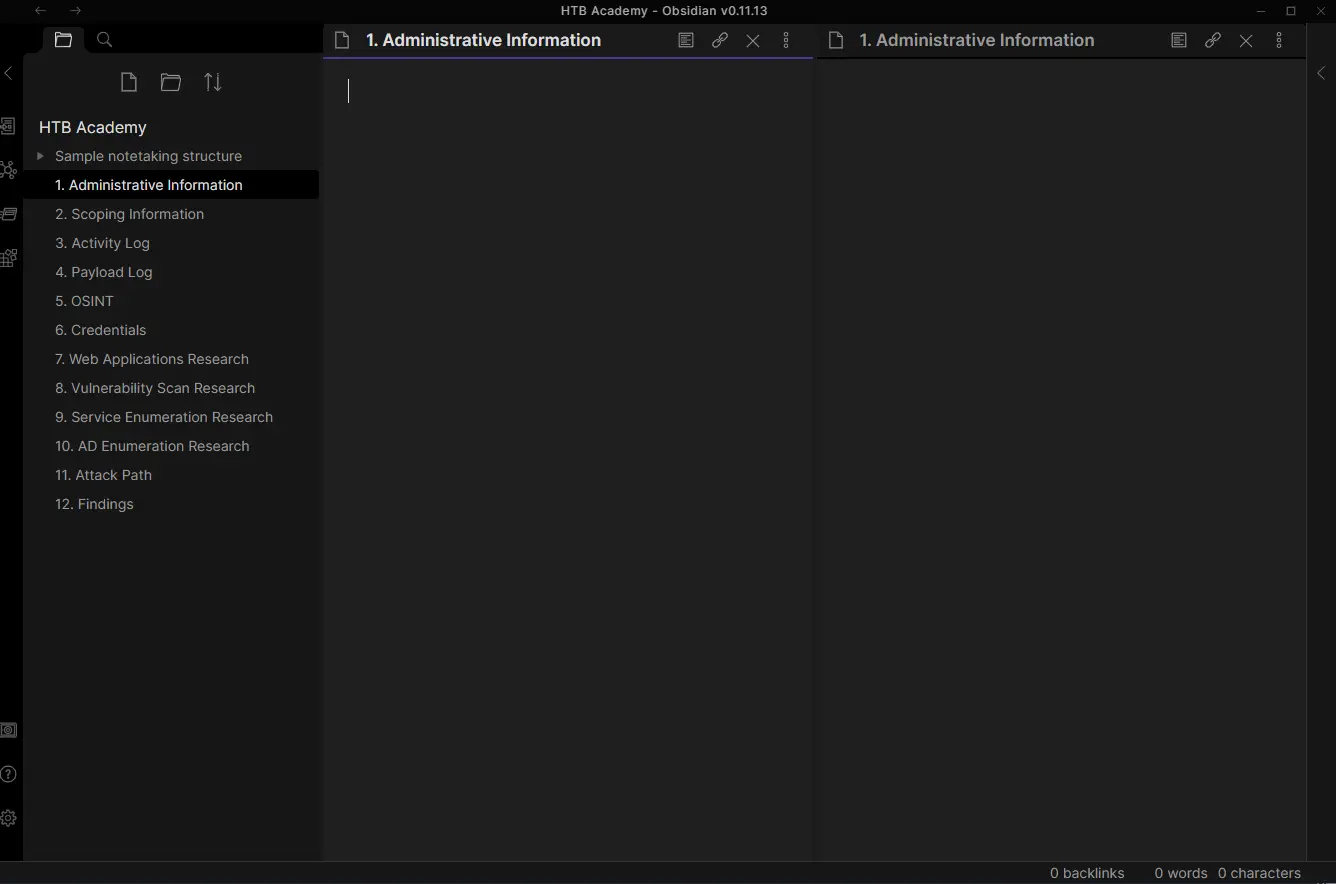
Then, we can open the <ENTERPRISE> folder as a vault from Obsidian, so we can interact with the notes and folders directly from the command line or inside the Obsidian tool
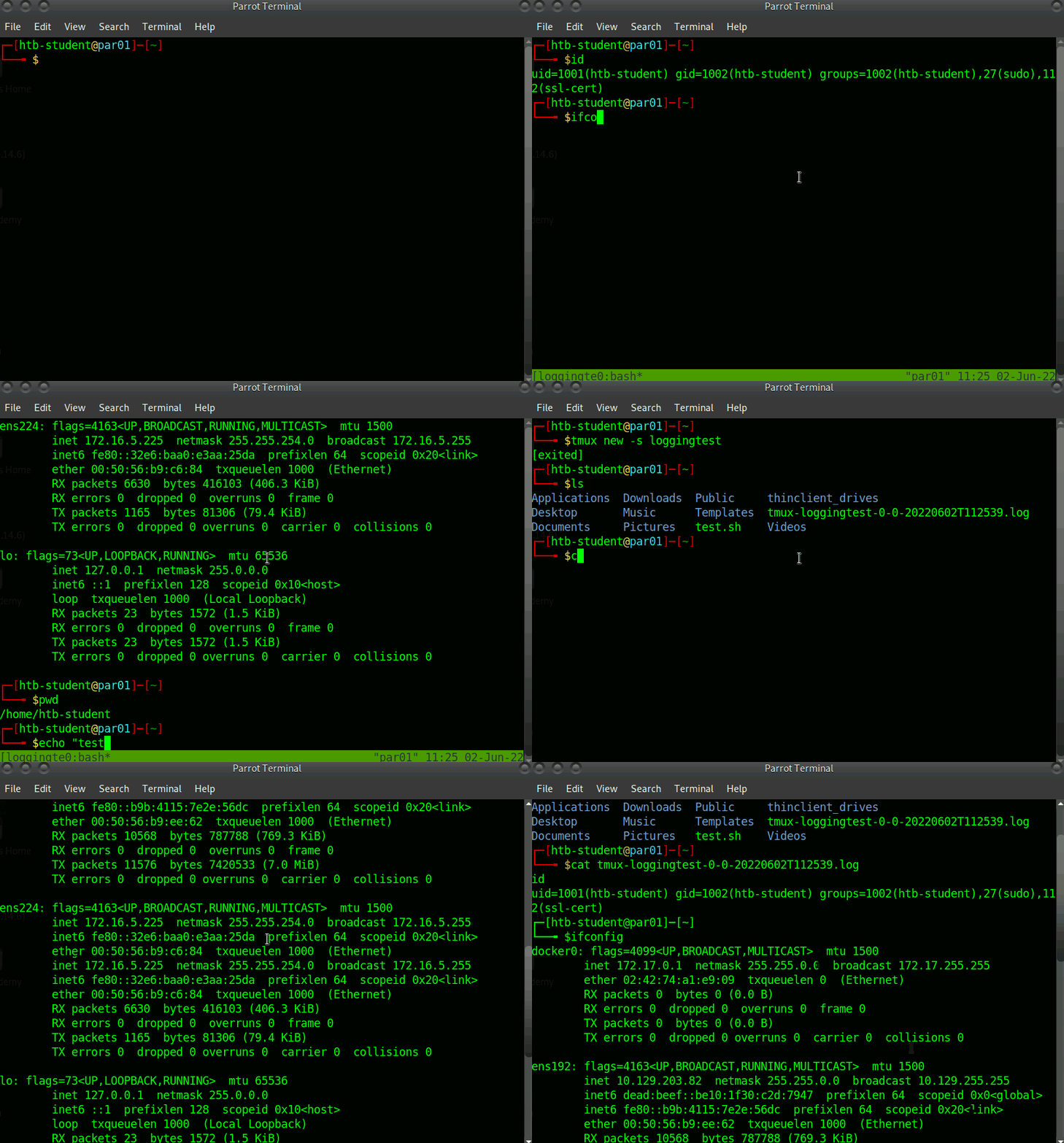
Logging
It becomes essential to save to a log file all scanning and attack attempts we perform during our assessment, including each tool’s raw output
Doing so, we have a fallback just in case we missed something during our notetaking