PRIMARY CATEGORY → FILE MANIPULATION
Content Listing
7z
7z l <VHD>Files Extraction
7z
See here first to list the Content of a VHD or VHDX File
Keeping the Directory Structure
7z x <VHD_OR_VHDX> -o<OUTPUT_DIR> <DIRECTORY_OR_FILE_PATH>Without keep the Directory Structure
7z e <VHD_OR_VHDX> -o<OUTPUT_DIR> <DIRECTORY_OR_FILE_PATH>Mounting VHD[x]
Windows
Obviously It can be done from a Windows Machine using the Disk Management or through HyperV
File Explorer
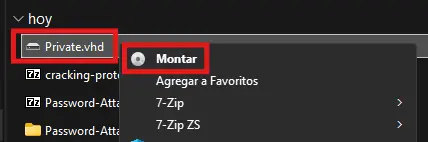
Zoom In
Disk Management
Run → diskmgmt.msc
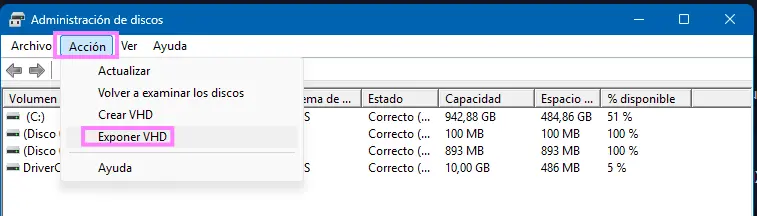
Zoom in
Mount-VHD PS Cmdlet
- Mounting the VHD[x]
Mount-VHD -Path '<VHD_PATH>'- Retrieving VHD’s DiskNumber
Get-VHD -Path '<VHD_PATH>' | Select Path, DiskNumber- Listing VHD’s Partitions
Get-Partition -DiskNumber '<VHD_DISK_NUMBER>'- Assigning a Drive Letter to the VHD Partition
Set-Partition -DiskNumber '<VHD_DISK_NUMBER>' -PartitionNumber '<VHD_PARTITION_NUMBER>' -NewDriveLetter '<DRIVE_LETTER>'e.g.
Set-Partition -DiskNumber 3 -PartitionNumber 2 -NewDriveLetter 'Z'
- Listing VHD’s content
dir -Path Z:\Linux
Setup
First of all, install the required package to have access to the tool
apt install -y -- libguestfs-toolsMounting
Then, proceed as follows to mount the VHD or VHDX content in a local directory →
mkdir <LOCAL_PATH>guestmount --add <VHD_OR_VHDX> --inspector --ro <LOCAL_PATH> -vInformation
If the VHD or VHDX file is in a remote folder shared via SMB or NFS, simply mount that directory first in the local system
- SMB
mount --types cifs //TARGET/SHARED_RESOURCE LOCAL_PATHIf Authentication is required →
mount --types cifs --options username=USER,password=PASSWORD //TARGET//SHARED_RESOURCE LOCAL_PATH
- NFS
mount --types nfs --options vers=NFS_VERSION,nolock TARGET:REMOTE_RESOURCE_PATH LOCAL_PATH
Mounting Bitlocker-Encrypted VHD[x]
Windows
Mount the .VHD File
Zoom In
Enter the cracked password at the Bitlocker Password Prompt
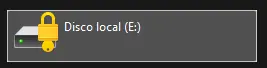
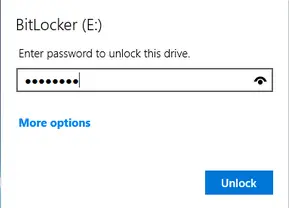
Zoom In
Linux
Setup
| UTILITY | PURPOSE |
|---|---|
losetup | Convert a file (.VHD, .ISO, .IMG…) into a block device |
dislocker | Decrypt and access an encrypted volume with Bitlocker |
mount | Mount the decrypted file system to access all the archives |
- Dislocker Installation
apt install -y -- dislockerLoop Device Creation based on the VHD File using losetup
losetup --find --show --partscan -- <VHD>Check if the created Loop Device is available
losetup --alllsblk -fm | grep -i -- loopFolders Creation to mount the VHD File
mkdir -p -- /media/{bitlocker,bitlockermount}Drive Decryption using Dislocker
dislocker --volume /dev/loop0p1 --user-password -- /media/bitlocker
> Enter the user password: *****
Check the Mounted Device (VHD)
mount | grep -i -- dislockerMount the Decrypted Volume
mount --options loop -- /media/bitlocker/dislocker-file /media/bitlockermountfind /media/bitlockermountMounting VMDK
Windows
See Windows VHDX Mounting and Resources
Linux
Setup
First of all, install the required package to have access to the tool
apt install -y -- libguestfs-toolsMounting
Then, proceed as follows to mount the VMDK content in a local directory →
mkdir <LOCAL_PATH>guestmount --add <VHD_OR_VHDX> --inspector --ro <LOCAL_PATH> -vInformation
If the VMDK file is in a remote folder shared via SMB or NFS, simply mount that directory first in the local system
- SMB
mount --types cifs //TARGET/SHARED_RESOURCE LOCAL_PATHIf Authentication is required →
mount --types cifs --options username=USER,password=PASSWORD //TARGET//SHARED_RESOURCE LOCAL_PATH
- NFS
mount --types nfs --options vers=NFS_VERSION,nolock TARGET:REMOTE_RESOURCE_PATH LOCAL_PATH